🔹 Join the OracleApps88 Telegram Group - Stay up to date with the latest on Oracle EBS R12 and Oracle Cloud/Fusion Applications. 📌 Telegram Group : https://t.me/OracleApps88

💡 Facing issues copying code/scripts or viewing posts? We're here to help!
📬 Contact on Telegram : https://t.me/apps88
📱 Telegram/WhatsApp: +91 905 957 4321
📧 Email Support: OracleApp88@Yahoo.com
Showing posts with label PAYMENTS. Show all posts

Monday, July 22, 2019

Fusion P2P – Oracle Fusion Procure to Pay (P2P) Life Cycle with Functional and Technical flow


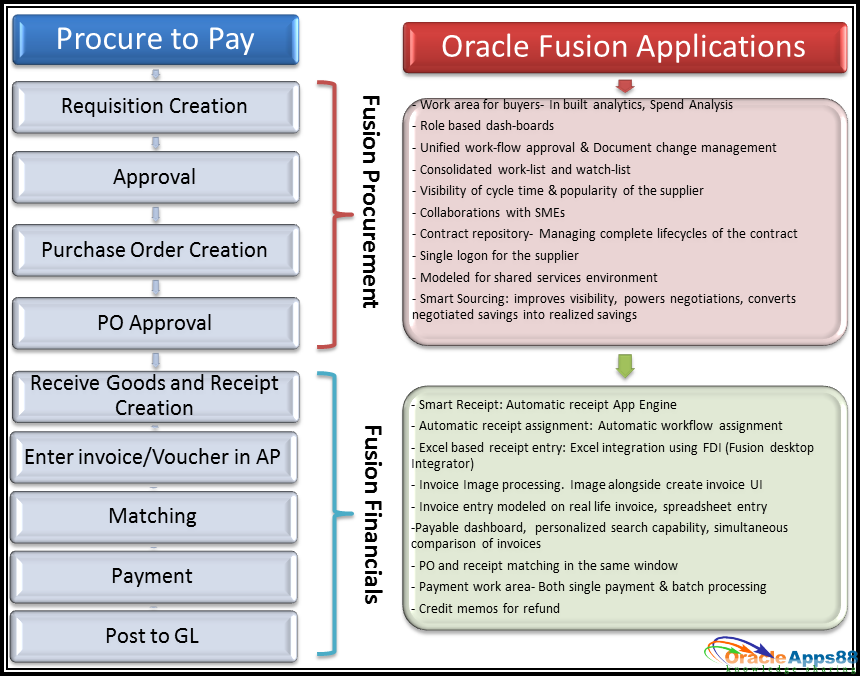
The Procure to Pay cycle is vital to an organization as in this process the organization buys and received goods or services from its vendors and makes necessary payments.

The key functionalities for different processes of the Procure-to-Pay cycle are:
In-built intelligence with business transactions--Role based dash boards and work area for buyer, approver; presenting the statistical report, trend, spend analysis, personalized search capability

Enhanced sourcing capabilities--Supplier analysis, visibility of supplier lead time and popularity across departments

Supplier self-service-- Single log-on for supplier providing complete visibility to their transactions and full invoicing capability

Standardized processes -- to facilitate shared services model and centralized procurement function

Smart Receipt capabilities-- Automatic receipt application engine, Over/Under payment rules, scored recommendations based on customer, transaction or exceptions, centralized approach for receipt processing, setup rules to match receipt to the specialist for manual intervention and rules to mark the priority of the receipt based on attributes

Payable dashboard--To collaborate with various participants, visibility of priority items and work volume, item tagging option for quick retrieval

Invoice Work Area-- Invoice creation from scanned images, exception resolution, Invoice creation in a format based on real life physical invoice offering easy data entry and audit

Integrated invoice image processing-- Image attached with the invoice throughout invoice life-cycle

Invoice indicators--Out of balance, status and hold, prepayment alert during entry

Voucher matching -- with the receipt and PO in the same window 

Personalized view-- Excel like capability to freeze columns, personalized search, full screen view, export to excel

One of the best characteristics of the Oracle Fusion applications is that these can be fully integrated with traditional Oracle ERP solutions like PeopleSoft, Oracle EBS. So the existing Oracle customers can choose to implement module wise and selective Fusion functions too. 
                                                                   
With the in-built business intelligence capabilities and business benefits of cloud based applications; Oracle Fusion financials and procurement definitely equip the finance and purchasing users to play a bigger role and add value in overall business achievements. 


The P2P cycle comprises of the following steps,
01. Create Requisitions
02. Approve Requisitions
03. Create Purchase Orders
04. Approve Purchase Orders
05. Receive Goods
06. Create Payables invoice with Match PO Lines
07. Approve Invoice
08. Invoice Payment to Supplier with Electronic Method
09. Approve Payments
10. Verify the Transaction Life Cycle
11. Transfer Payables data to General Ledger
12. Transfer Payments data to General Ledger
13. Verify the Journal Batches
14. Verify the Notifications in Mail


Please click on the below link for more details:

Fusion P2P – Oracle Fusion Procure to Pay (P2P) Life Cycle with Functional and Technical flow


Please Like and Share our FaceBook page to get more details on Oracle Applications
https://www.facebook.com/pages/Oracle-Applications/712588392100243

Saturday, July 20, 2019

AP – Oracle Fusion Payable and Payments (ACH, Check) Setups and Process Training Manual

Payable Setups
  Setup the Manage Procurement Agent
  Supplier Registration without Bank Details
  Add the Bank Account to the Supplier
  Invoice, Payment Approval Setups (Optional)
  Bank, Branch and Bank Account Setups
Understanding Payables Dashboard

Invoice Creation
  Standard Invoice
  Credit Memo Invoice
  Credit Memo Invoice with Matching to Standard Invoice
  Debit Memo Invoice
  Debit Memo Invoice with Matching to Standard Invoice

PO (Purchase Order) Matched Invoices
  Creating a Purchase Order for Apply to Standard Invoice
  Creating a Standard Invoice and Match the Above Purchase Order
  Creating One Invoice Matched to Multiple Purchase Orders

Invoice Holds
  Placing a Manual Hold on an Invoice
  Releasing Invoices from a System Hold
  Placing a Manual Hold on an Invoice Lines
Cancelling an Invoice


ACH (Electronic) Payment Setups and Process Flow
ACH Payment Setups
  1.BI Publisher Desktop
  2.Payment Setups
    a.Payment Templates
    b.Payment Formats
    c.Payment Document (For Electronic payments this setup is Optional)
    d.Payment Process Profile (PPP)
    e.Payment Process Request Template (Optional)

  ACH (Electronic) Payment Process Flow
  1.Create Invoice and Pay in Full
  2.Manual Payment
                Create invoice and submit the Manual Payment
               
  3.Run the Payment Process Request (PPR)
                Create Invoice
                Void the Payment (Cancel the Existing payment)
                Create the PPR for New Invoices and Void Payments
               
  4.Accounting
                Post the Invoice to General Ledger
                Post the Payment to General Ledger
 

Check Payment Setups and Process Flow
   Check Payment Setups
    1.Payment Setups
      a.Payment Templates
      b.Payment Formats
      c.Payment Document (For Electronic payments this setup is Optional)
      d.Payment Process Profile (PPP)
      e.Payment Process Request Template (Optional)

  Check Payment Process Flow
    1.Create Invoice and Pay in Full
    2.Manual Payment
      Create invoice and run the Manual Payment
   
    3.Run the Payment Process Request (PPR)
      Create Invoice
      Void the Payment (Cancel the Existing payment)
      Create the PPR for New Invoices and Void Payments
   
    4.Accounting
                  Post the Invoice to General Ledger
                  Post the Payment to General Ledger


Setup the Manage Procurement Agent
Procurement agents are typically users with procurement roles, such as:
Buyer
Catalog Administrator
Category Manager
Procurement Contract Administrator
Procurement Manager
Supplier Administrator
Supplier Manager
Supplier Qualification

They have procurement job responsibilities in the buying organization, such as creating purchase agreements, purchase orders, and related procurement functions. You must set up these users as procurement agents for them to manage procurement documents and perform other procurement actions.
You use the Manage Procurement Agents task to create and maintain a procurement agent's access to procurement functionality for a business unit. You can find the task in the Purchase Agreements and Purchase Orders work areas.

You can implement document security for individual document types, such as purchase orders, purchase agreements, and requisitions. You can also control a procurement agent's access to manage activities for suppliers, negotiations, catalog content, and business intelligence spend data.
The configuration assigns an access level to documents owned by other procurement agents for each procurement business unit.

Note: An agent can perform all actions on his own documents as long as he has procurement BU access.
None: The agent has no access to documents owned by other agents.

View: Permits the agent to search and view other agents' documents.
Modify: Permits the agent to view, modify, delete, and withdraw other agents' documents.
Full: Permits the agent full control of other agents' documents. This includes the view, modify, delete, withdraw, freeze, hold, close, cancel, and finally close actions.
The buyer agent is granted access to the Manage Supplier functionality in the Manage Procurement Agent page
- Login with an username with access to Functional Setup Manager
- Select Functional Setup Manager (FSM) face
- In All Tasks Tab, search for "Manage Procurement Agent"
- Click on Manage Procurement Agent task
- Click on the Agent Name to Edit the Agent
- Under Action, grantee the "Manage Suppliers" privilege to the agent
By default, the suppliers for which the agent is granted access is based on the business unit setups. And Supplier Sites are assigned to certain business units in the site assignments.
All of these setups work together to determine which suppliers and supplier sites the buyer agent can manage or view.

If you have France setup as a Business Unit and Italy setup as a Business Unit you may control the access via the Business Unit setup for the buyer agent, or otherwise you may control the access at the individual Supplier Site setups.

Supplier Creation and Maintenance
After login to instance, click on Home Icon.


Please click on the below link for more details:
AP – Oracle Fusion Payable and Payments (ACH, Check) Setups and Process Training Manual
https://drive.google.com/file/d/1kmoZp1GbG2jymB3eEeJpsicdJOr5BMDX/


Please Like and Share our FaceBook page to get more details on Oracle Applications
https://www.facebook.com/pages/Oracle-Applications/712588392100243

Saturday, August 11, 2018

Setup Remittance Advice Email Notification PDF Attachment for Suppliers


1. Login using the SYSADMIN user
2. Responsibility: Workflow Administrator Web Applications
àAdministrator Workflow àBusiness Events.
3. Search Criteria  = oracle.apps.ap.payment ,
4. Click Go.
5. Click the "Subscriptions" icon for the Payment Event.
6. Click the Edit icon for ap_payment_event_wf_pkg.rule_function
7. Change the Status from "Enabled" to "Disabled" in Execution Condition Region.
8. Click Apply.

Configure BI (XML) Publisher Separate Remittance Advice (SRA) Delivery.

1. Create the instance specific xdodelivery.cfg file
<?xml version='1.0' encoding='UTF-8'?>
<config xmlns="http://xmlns.oracle.com/oxp/delivery/config">
<!-- ======================================================== -->
<!-- servers section -->
<!-- List your pre-defined servers here. -->
<!-- ======================================================== -->
<servers>
     <server name="myprinter1" type="ipp_printer" default="true">
          <uri>ipp://myprinter1.oracle.com:631/printers/myprinter1</uri>
     </server>
     <server name="myprinter2" type="ipp_printer" >
          <host>myprinter2.oracle.com</host>
          <port>631</port>
          <uri>ipp://myprinter2.oracle.com:631/printers/myprinter2</uri>
          <authType>basic</authType>
          <username>xdo</username>
          <password>xdo</password>
     </server>
     <server name="myfax1" type="ipp_fax" default="true" >
          <host>myfax1.oracle.com</host>
          <port>631</port>
          <uri>ipp://myfax1.oracle.com:631/printers/myfax1</uri>
     </server>
     <server name="mysmtp1" type="smtp_email" default="true">
          <host>myprinter1.oracle.com</host>
          <port>25</port>
     </server>
     <server name="mysmtp2" type="smtp_email" >
          <host>mysmtp12.oracle.com</host>
          <port>25</port>
          <username>xdo</username>
          <password>xdo</password>
     </server>
</servers>
<!-- ======================================================== -->
<!-- properties section -->
<!-- List the system properties here. -->
<!-- ======================================================== -->
<properties>
     <property name="ds-temp-dir">/tmp</property>
     <property name="ds-buffering">true</property>
</properties>
<!-- ======================================================== -->
<!-- channels section -->
<!-- List the custom delivery channels here. -->
<!-- ======================================================== -->
<channels>
     <channel name="file">oracle.apps.xdo.delivery.file.FileDeliveryRequestFactory</channel>
</channels>
</config>


The Separate Remittance Advice will use the e-mail host, printer and fax details which are set up in this file.
Note that the SRA log file will show following error with above xdodelivery.cfg example:
   oracle.apps.xdo.delivery.MissingRequiredPropertyException: Required property missing. Property name :[HOST]

2. Save the xdodelivery.cfg into the $XDO_TOP/resource directory.
$XDO_TOP/resource directory will need to be created in case it does not exist already.

3. Set the Profile Option IBY: XML Publisher Delivery Manager Configuration File

Ensure the filename xdodelivery.cfg is in lowercase and include the full path and file name in the Profile Setting
Note: Do not use environment variables or relative paths while specifying the location of xdodelivery.cfg file in the profile option IBY_XDO_DELIVERY_CFG_FILE. Please use ABSOLUTE path instead.

4. Configure Profile options
IEX: SMTP From
Should Specify the E-mail From Address

IEX: SMTP Host
Should Specify the E-Mail host.

5.  Login to the application.
Responsibility = Application Developer
Navigate : Application -> Messages

Query
IBY_FD_SRA%

Two Messages are returned.
IBY_FD_SRA_EMAIL_FROM
The Seeded message is...
account_payables@visioncorp.com

and the other
IBY_FD_SRA_EMAIL_SUBJ
The Seeded message is...
Separate Remittance Advice: payment reference number - &PMT_REF_NUM

IBY_FD_SRA_EMAIL_BODY -  This is for configurable message body and this will
go as inline content for emails that have output attached as a pdf.

IBY_FD_SRA_ATTACHMENT - This value is by-default set to FALSE and should be
set to TRUE for using the new enhancement, if this is set to TRUE then the
output will be sent as PDF attachment, else the same behavior(inline content)
is retained.

Modify those messages to meet your requirement.

6. Configure the Separate Remittance Advice Delivery Method at Supplier and Supplier Site. You also specify the e-mail address for the supplier if you want to e-mail the remittance advice.

1. Go into the responsibility: Payables
2. Navigate to MENUPATH > Supplier > Entry
3. Query supplier
4. Click on Payment Details
5. In Supplier Sites region click on 'Update Payment Details'
6. Go to tab Separate Remittance Advise Delivery
7. Select 'E-mail' from Delivery Method LOV
8. Enter E-Mail adress
9. Save
10.Run query below:

select payee_party_id, REMIT_ADVICE_DELIVERY_METHOD, REMIT_ADVICE_EMAIL
from iby_external_payees_all
where payee_party_id = <payee_party_id>;

7. Specify the Separate Remittance Advice Format when configuring the Payment Process Profile.
Reporting Tab
Format - Specify The Remittance Advice Format you wish to use for this PPP Automatically Submit at Payment Completion Point - Check the Box for Automatic Submission
Allow Multiple Copies for Payment Instruction - Check The Box if you want the user to be able to print more than once.
Condition

All Payments or Number of Documents or Payment Detail Length - You may Choose to Create a Remittance Advice Under Certain Conditions Only
Delivery Method
E-mail or Fax or Printed - The Default for the PPP of how the Remitance Advice will be delivered
Override Payee Delivery Method Preference - Check the box if the PPP Delivery Method takes precedence over the Delivery Method configured for the Supplier Site.
 
Note : Apply the patch (R12.2 20526954:R12.IBY.C) to send the Remittance Advice as Email attachment in PDF


If you are facing any issues while copying the Code/Script or any issues with Posts, Please send a mail to OracleApp88@Yahoo.com or message me at @apps88 or +91 905 957 4321 in telegram.
Best Blogger TipsGet Flower Effect