
The installation size of Oracle E-Business Suite R12.1.1 is:
* 90 GB for a fresh install with a production database:
Application tier file system - 35 GB
Database tier file system - 55 GB
* 243 GB for a fresh install with a Vision Demo database.
Application tier file system - 35 GB
Oracle Applications (12.1) Installation on Enterprise Linux 4
Unpack Files
Create a staging area for the Oracle Applications software.
mkdir /StageR12
cd /StageR12
# Start Here
mkdir startCD
# APPL_TOP
mkdir oraApps
# RDBMS
mkdir oraDB
# Tools
mkdir oraiAS
# Databases
mkdir oraAppDB
Hosts File
The "/etc/hosts" file must contain a fully qualified name for the server.
<IP-address> <fully-qualified-machine-name> <machine-name>
Set Kernel Parameters
Add the following lines to the "/etc/sysctl.conf" file.
kernel.shmall = 2097152
kernel.shmmax = 2147483648
kernel.shmmni = 4096
kernel.msgmni = 2878
kernel.msgmax = 8192
kernel.msgmnb = 65535
# semaphores: semmsl, semmns, semopm, semmni
kernel.sem = 250 32000 100 142
fs.file-max = 131072
net.ipv4.ip_local_port_range = 1024 65000
net.core.rmem_default=262144
net.core.rmem_max=262144
net.core.wmem_default=262144
net.core.wmem_max=262144
Run the following command to change the current kernel parameters:
/sbin/sysctl -p
Add the following lines to the "/etc/security/limits.conf" file.
* soft nofile 65536
* hard nofile 65536
* soft nproc 16384
* hard nproc 16384
Add the following line to the "/etc/pam.d/login" file, if it does not already exist.
session required /lib/security/pam_limits.so
Setup
The following additional packages are required. Depending on the update/respin version of Enterprise Linux, the exact package versions and locations may vary.
rpm -Uvh binutils-2*
rpm -Uvh compat-db-*
rpm -Uvh compat-gcc-32-3*
rpm -Uvh compat-gcc-32-c++-3*
rpm -Uvh compat-libstdc++-296-2*
rpm -Uvh compat-libstdc++-33-3*
rpm -Uvh control-center-2*
rpm -Uvh gcc-3*
rpm -Uvh gcc-c++-3*
rpm -Uvh glibc-2*
rpm -Uvh glibc-common-2*
rpm -Uvh gnome-libs-1*
rpm -Uvh libaio-0*
rpm -Uvh libstdc++-3*
rpm -Uvh libstdc++-devel-3*
rpm -Uvh make-3*
rpm -Uvh openmotif21*
rpm -Uvh setarch-1*
rpm -Uvh sysstat-5*
rpm -Uvh xscreensaver-4.*
Due to all the package inter-dependencies, it probably makes sense to copy all these packages from the CDs to a single directory, then install then using the following command. For convenience, I wrapped all the necessary packages for an OEL 4.5 installation into a single tar file (12-rh4-rpms.tar), making subsequent installations much simpler.
rpm -Uvh *.rpm
Create the new groups and users.
groupadd oinstall
groupadd dba
groupadd oper
groupadd apache
useradd -g oinstall -G dba oracle
passwd oracle
useradd -g oinstall -G apache apache
passwd apache
Create the directories in which the Oracle software will be installed.
mkdir -p /u01
chown -R oracle:oinstall /u01
Login as the oracle user and add the following line at the end of the ".bash_profile" file.
# Oracle 10g
if [ $USER = "oracle" ]; then
if [ $SHELL = "/bin/ksh" ]; then
ulimit -p 16384
ulimit -n 65536
else
ulimit -u 16384 -n 65536
fi
fi
Installation
Log into the oracle user. If you are using X emulation then set the DISPLAY environmental variable.
DISPLAY=<machine-name>:0.0; export DISPLAY
Start the Rapid Install Wizard by issuing the following commands.
cd /Stage11i/startCD/Disk1/rapidwiz/
chmod u+x rapidwiz
./rapidwiz
Follow any instructions and rerun as requested. The Rapid Installation Wizard installation is shown below.
1. Click the "Next" button on the welcome screen.
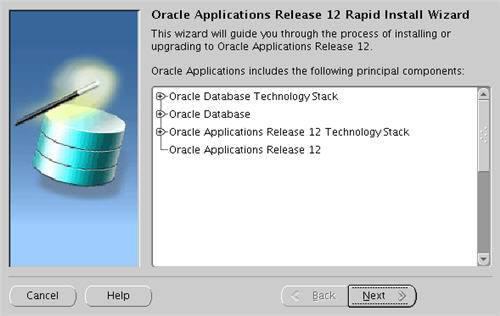
2. Accept the default "Install Oracle Applications Release 12" option by clicking the "Next" button.


Post Installation
Adjust the following paths and commands by replacing "play" and "PLAY" with the database name you chose during the installation.
Add the following into the "/home/oracle/.bash_profile" file.
DB_HOME=/u01/oracle/PLAY/db/tech_st/10.2.0; export DB_HOME
APPL_TOP=/u01/oracle/PLAY/apps/apps_st/appl; export APPL_TOP
COMMON_TOP=/u01/oracle/PLAY/inst/apps/PLAY_testapps01; export COMMON_TOP
To switch environments, move to the appropriate home directory and run the environment script, like.
cd $DB_HOME
. ./PLAY_testapps01.env
Shutdown/Startup
Adjust the following paths and commands by replacing "play" and "PLAY" with the database name you chose during the installation.
To shutdown the system issue the following commands.
cd $COMMON_TOP/admin/scripts/
./adstpall.sh apps/apps
cd $DB_HOME
. ./PLAY_testapps01.env
cd $ORACLE_HOME/appsutil/scripts/PLAY_testapps01
./addlnctl.sh stop PLAY
./addbctl.sh stop immediate
To start the system issue the following commands.
cd $DB_HOME
. ./PLAY_testapps01.env
cd $ORACLE_HOME/appsutil/scripts/PLAY_testapps01
./addlnctl.sh start PLAY
./addbctl.sh start
cd $COMMON_TOP/admin/scripts/
./adstrtal.sh apps/apps
./adcmctl.sh start apps/apps
Rapid Installation Wizard Portal
Once the installation is complete, the Rapid Installation Portal can be accessed using the following information.
* URL: http://machine-name:8000/OA_HTML/AppsLogin
* Username: SYSADMIN
* Password: SYSADMIN
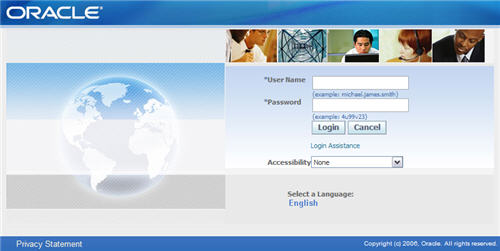
To change the SYSADMIN passowrd do the following.
* Log in to the eBusiness Suite homepage as SYSADMIN
* Click on the "preferences" link (top-right).
* Enter the old and new passwords.
* 90 GB for a fresh install with a production database:
Application tier file system - 35 GB
Database tier file system - 55 GB
* 243 GB for a fresh install with a Vision Demo database.
Application tier file system - 35 GB
Oracle Applications (12.1) Installation on Enterprise Linux 4
Unpack Files
Create a staging area for the Oracle Applications software.
mkdir /StageR12
cd /StageR12
# Start Here
mkdir startCD
# APPL_TOP
mkdir oraApps
# RDBMS
mkdir oraDB
# Tools
mkdir oraiAS
# Databases
mkdir oraAppDB
Hosts File
The "/etc/hosts" file must contain a fully qualified name for the server.
<IP-address> <fully-qualified-machine-name> <machine-name>
Set Kernel Parameters
Add the following lines to the "/etc/sysctl.conf" file.
kernel.shmall = 2097152
kernel.shmmax = 2147483648
kernel.shmmni = 4096
kernel.msgmni = 2878
kernel.msgmax = 8192
kernel.msgmnb = 65535
# semaphores: semmsl, semmns, semopm, semmni
kernel.sem = 250 32000 100 142
fs.file-max = 131072
net.ipv4.ip_local_port_range = 1024 65000
net.core.rmem_default=262144
net.core.rmem_max=262144
net.core.wmem_default=262144
net.core.wmem_max=262144
Run the following command to change the current kernel parameters:
/sbin/sysctl -p
Add the following lines to the "/etc/security/limits.conf" file.
* soft nofile 65536
* hard nofile 65536
* soft nproc 16384
* hard nproc 16384
Add the following line to the "/etc/pam.d/login" file, if it does not already exist.
session required /lib/security/pam_limits.so
Setup
The following additional packages are required. Depending on the update/respin version of Enterprise Linux, the exact package versions and locations may vary.
rpm -Uvh binutils-2*
rpm -Uvh compat-db-*
rpm -Uvh compat-gcc-32-3*
rpm -Uvh compat-gcc-32-c++-3*
rpm -Uvh compat-libstdc++-296-2*
rpm -Uvh compat-libstdc++-33-3*
rpm -Uvh control-center-2*
rpm -Uvh gcc-3*
rpm -Uvh gcc-c++-3*
rpm -Uvh glibc-2*
rpm -Uvh glibc-common-2*
rpm -Uvh gnome-libs-1*
rpm -Uvh libaio-0*
rpm -Uvh libstdc++-3*
rpm -Uvh libstdc++-devel-3*
rpm -Uvh make-3*
rpm -Uvh openmotif21*
rpm -Uvh setarch-1*
rpm -Uvh sysstat-5*
rpm -Uvh xscreensaver-4.*
Due to all the package inter-dependencies, it probably makes sense to copy all these packages from the CDs to a single directory, then install then using the following command. For convenience, I wrapped all the necessary packages for an OEL 4.5 installation into a single tar file (12-rh4-rpms.tar), making subsequent installations much simpler.
rpm -Uvh *.rpm
Create the new groups and users.
groupadd oinstall
groupadd dba
groupadd oper
groupadd apache
useradd -g oinstall -G dba oracle
passwd oracle
useradd -g oinstall -G apache apache
passwd apache
Create the directories in which the Oracle software will be installed.
mkdir -p /u01
chown -R oracle:oinstall /u01
Login as the oracle user and add the following line at the end of the ".bash_profile" file.
# Oracle 10g
if [ $USER = "oracle" ]; then
if [ $SHELL = "/bin/ksh" ]; then
ulimit -p 16384
ulimit -n 65536
else
ulimit -u 16384 -n 65536
fi
fi
Installation
Log into the oracle user. If you are using X emulation then set the DISPLAY environmental variable.
DISPLAY=<machine-name>:0.0; export DISPLAY
Start the Rapid Install Wizard by issuing the following commands.
cd /Stage11i/startCD/Disk1/rapidwiz/
chmod u+x rapidwiz
./rapidwiz
Follow any instructions and rerun as requested. The Rapid Installation Wizard installation is shown below.
1. Click the "Next" button on the welcome screen.

2. Accept the default "Install Oracle Applications Release 12" option by clicking the "Next" button.

3. Select the "Decline Oracle Connection Tools Agreement" option, then click the "Next" button.

4. Select the "Create a new configuration" option, then click the "Next" button.

5. Accept the default port pool by clicking the "Next" button.

6. Select the "fresh database" database type, enter a database name, in this case I used "PLAY", then click the "Next" button.

7. Select the "Suite Licensing" option, then click the "Next" button.

8. Accept the default products by clicking the "Next" button.

9. Select the appropriate country functionality, then click the "Next" button.

10. Select the appropriate territory and characterset information, then click the "Next" button.

11. Check the node configuration settings, then click the "Next" button.

12. Accept the node information by clicking the "Next" button.

13. Wait for the system check status to complete.

14. Assuming all the system checks were completed successfully, click the "Next" button.

15. Click the "Next" button on the installation review screen.

16. Click the "Yes" button to start the installation.

17. Wait while the installation takes place.
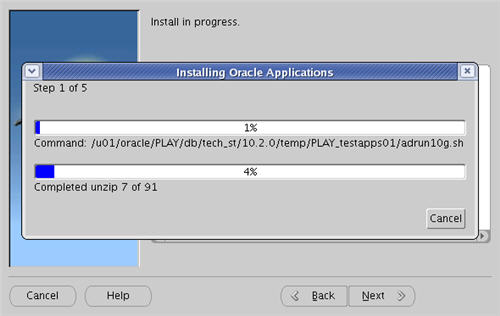
18. Assuming all the post-install checks are successful, click the "Next" button.

19. Click the "Finish button to exit the Rapid Install Wizard.

Adjust the following paths and commands by replacing "play" and "PLAY" with the database name you chose during the installation.
Add the following into the "/home/oracle/.bash_profile" file.
DB_HOME=/u01/oracle/PLAY/db/tech_st/10.2.0; export DB_HOME
APPL_TOP=/u01/oracle/PLAY/apps/apps_st/appl; export APPL_TOP
COMMON_TOP=/u01/oracle/PLAY/inst/apps/PLAY_testapps01; export COMMON_TOP
To switch environments, move to the appropriate home directory and run the environment script, like.
cd $DB_HOME
. ./PLAY_testapps01.env
Shutdown/Startup
Adjust the following paths and commands by replacing "play" and "PLAY" with the database name you chose during the installation.
To shutdown the system issue the following commands.
cd $COMMON_TOP/admin/scripts/
./adstpall.sh apps/apps
cd $DB_HOME
. ./PLAY_testapps01.env
cd $ORACLE_HOME/appsutil/scripts/PLAY_testapps01
./addlnctl.sh stop PLAY
./addbctl.sh stop immediate
To start the system issue the following commands.
cd $DB_HOME
. ./PLAY_testapps01.env
cd $ORACLE_HOME/appsutil/scripts/PLAY_testapps01
./addlnctl.sh start PLAY
./addbctl.sh start
cd $COMMON_TOP/admin/scripts/
./adstrtal.sh apps/apps
./adcmctl.sh start apps/apps
Rapid Installation Wizard Portal
Once the installation is complete, the Rapid Installation Portal can be accessed using the following information.
* URL: http://machine-name:8000/OA_HTML/AppsLogin
* Username: SYSADMIN
* Password: SYSADMIN

To change the SYSADMIN passowrd do the following.
* Log in to the eBusiness Suite homepage as SYSADMIN
* Click on the "preferences" link (top-right).
* Enter the old and new passwords.


