🔹 Join the OracleApps88 Telegram Group - Stay up to date with the latest on Oracle EBS R12 and Oracle Cloud/Fusion Applications. 📌 Telegram Group : https://t.me/OracleApps88

💡 Facing issues copying code/scripts or viewing posts? We're here to help!
📬 Contact on Telegram : https://t.me/apps88
📱 Telegram/WhatsApp: +91 905 957 4321
📧 Email Support: OracleApp88@Yahoo.com
Showing posts with label CHECKS. Show all posts

Saturday, July 20, 2019

AP – Oracle Fusion Payable and Payments (ACH, Check) Setups and Process Training Manual

Payable Setups
  Setup the Manage Procurement Agent
  Supplier Registration without Bank Details
  Add the Bank Account to the Supplier
  Invoice, Payment Approval Setups (Optional)
  Bank, Branch and Bank Account Setups
Understanding Payables Dashboard

Invoice Creation
  Standard Invoice
  Credit Memo Invoice
  Credit Memo Invoice with Matching to Standard Invoice
  Debit Memo Invoice
  Debit Memo Invoice with Matching to Standard Invoice

PO (Purchase Order) Matched Invoices
  Creating a Purchase Order for Apply to Standard Invoice
  Creating a Standard Invoice and Match the Above Purchase Order
  Creating One Invoice Matched to Multiple Purchase Orders

Invoice Holds
  Placing a Manual Hold on an Invoice
  Releasing Invoices from a System Hold
  Placing a Manual Hold on an Invoice Lines
Cancelling an Invoice


ACH (Electronic) Payment Setups and Process Flow
ACH Payment Setups
  1.BI Publisher Desktop
  2.Payment Setups
    a.Payment Templates
    b.Payment Formats
    c.Payment Document (For Electronic payments this setup is Optional)
    d.Payment Process Profile (PPP)
    e.Payment Process Request Template (Optional)

  ACH (Electronic) Payment Process Flow
  1.Create Invoice and Pay in Full
  2.Manual Payment
                Create invoice and submit the Manual Payment
               
  3.Run the Payment Process Request (PPR)
                Create Invoice
                Void the Payment (Cancel the Existing payment)
                Create the PPR for New Invoices and Void Payments
               
  4.Accounting
                Post the Invoice to General Ledger
                Post the Payment to General Ledger
 

Check Payment Setups and Process Flow
   Check Payment Setups
    1.Payment Setups
      a.Payment Templates
      b.Payment Formats
      c.Payment Document (For Electronic payments this setup is Optional)
      d.Payment Process Profile (PPP)
      e.Payment Process Request Template (Optional)

  Check Payment Process Flow
    1.Create Invoice and Pay in Full
    2.Manual Payment
      Create invoice and run the Manual Payment
   
    3.Run the Payment Process Request (PPR)
      Create Invoice
      Void the Payment (Cancel the Existing payment)
      Create the PPR for New Invoices and Void Payments
   
    4.Accounting
                  Post the Invoice to General Ledger
                  Post the Payment to General Ledger


Setup the Manage Procurement Agent
Procurement agents are typically users with procurement roles, such as:
Buyer
Catalog Administrator
Category Manager
Procurement Contract Administrator
Procurement Manager
Supplier Administrator
Supplier Manager
Supplier Qualification

They have procurement job responsibilities in the buying organization, such as creating purchase agreements, purchase orders, and related procurement functions. You must set up these users as procurement agents for them to manage procurement documents and perform other procurement actions.
You use the Manage Procurement Agents task to create and maintain a procurement agent's access to procurement functionality for a business unit. You can find the task in the Purchase Agreements and Purchase Orders work areas.

You can implement document security for individual document types, such as purchase orders, purchase agreements, and requisitions. You can also control a procurement agent's access to manage activities for suppliers, negotiations, catalog content, and business intelligence spend data.
The configuration assigns an access level to documents owned by other procurement agents for each procurement business unit.

Note: An agent can perform all actions on his own documents as long as he has procurement BU access.
None: The agent has no access to documents owned by other agents.

View: Permits the agent to search and view other agents' documents.
Modify: Permits the agent to view, modify, delete, and withdraw other agents' documents.
Full: Permits the agent full control of other agents' documents. This includes the view, modify, delete, withdraw, freeze, hold, close, cancel, and finally close actions.
The buyer agent is granted access to the Manage Supplier functionality in the Manage Procurement Agent page
- Login with an username with access to Functional Setup Manager
- Select Functional Setup Manager (FSM) face
- In All Tasks Tab, search for "Manage Procurement Agent"
- Click on Manage Procurement Agent task
- Click on the Agent Name to Edit the Agent
- Under Action, grantee the "Manage Suppliers" privilege to the agent
By default, the suppliers for which the agent is granted access is based on the business unit setups. And Supplier Sites are assigned to certain business units in the site assignments.
All of these setups work together to determine which suppliers and supplier sites the buyer agent can manage or view.

If you have France setup as a Business Unit and Italy setup as a Business Unit you may control the access via the Business Unit setup for the buyer agent, or otherwise you may control the access at the individual Supplier Site setups.

Supplier Creation and Maintenance
After login to instance, click on Home Icon.


Please click on the below link for more details:
AP – Oracle Fusion Payable and Payments (ACH, Check) Setups and Process Training Manual
https://drive.google.com/file/d/1kmoZp1GbG2jymB3eEeJpsicdJOr5BMDX/


Please Like and Share our FaceBook page to get more details on Oracle Applications
https://www.facebook.com/pages/Oracle-Applications/712588392100243

Friday, April 14, 2017

Oracle Payments Positive Pay Details

Positive Pay Output Files are Missing for Successfully Completed IBY_FD_POS_PAY_FORMAT Requests
That condition can occur if the Output Format setup for the IBY_FD_POS_PAY_FORMAT concurrent program is mistakenly set to 'PDF' instead of to 'Text'.

Using responsibility System Administrator, please navigate Concurrent > Program > Define.
Run an F11 query for program Short Name IBY_FD_POS_PAY_FORMAT.
If the Output Format is indeed set to 'PDF', change it to 'Text', and Save that change. 

Then run additional testing to verify that the IBY_FD_POS_PAY_FORMAT concurrent requests now generate output files that are consistent with the check selection and text output row formatting that is referenced in the associated log files.

Positive Pay File Requirement for Negotiable and Voided Checks (Doc ID 1909147.1)
In R12 (12.0.x, 12.1.x, 12.2.x), there is a single seeded Format for generating Positive Pay File reports: 
Name: Positive Pay File
Code: IBY_PAY_POSITIVE_PAY

That single seeded Format is utilized by two standard concurrent programs:
Name: Positive Pay File 
Code: IBY_FD_POS_PAY_FORMAT
.
Name: Positive Pay File with Additional Parameters
Code: IBY_FD_POS_PAY_FORMAT_2

If a Positive Pay File output is to be generated automatically from the processing of a Payment Instruction, it is the "Positive Pay File" concurrent program that will be executed.

When generating a Positive Pay File output outside of the payment batch process, it is almost always Positive Pay File with Additional Parameters concurrent program that gets submitted.

As implied by the difference in the two program names, the Positive Pay File with Additional Parameters concurrent program offers much more flexibility over submission parameters than is available with the Positive Pay File Concurrent Program. For example, the Positive Pay File with Additional Parameters concurrent program allows the user to specify "Reselect" of checks, and with regard to payment status it offers the choice between Negotiable only, Void only, or Negotiable and Void.

Please run testing related to the descriptions above of standard positive pay file setups and functionality on R12, and determine how you prefer to implement Positive Pay File reporting to meet your specific business requirements.

R12: How To Generate Positive Pay File reports for Quick Payments (Doc ID 465466.1)
By default, the Positive Pay File programs are attached to the Fund Disbursement responsibility (for the Payments Manager module), but they can also be assigned to a Payables responsibility.

Steps:
--------
1. Select the System Administrator responsibility from the Home Page
2. Path: Security > Responsibility > Request
3. Query using the following criteria:
Group = All Reports
Application = Payables
4. Insert a new row for the program Positive Pay File for the Payables application, and another new row for the program Positive Pay File with Additional Parameters for the Payables application.
Save the changes.

After this, the reports will be available to be run using any Payables responsibility that has the "All Reports" Request Group assigned to it.

5. When a Quick Payment is created in the Payments Workbench form, the system generates a concurrent program called Format Payment Instructions.  Check the log file for this process to determine the system-assigned Payment Instruction ID number for the payment.
6. Then submit the Positive Pay program of your choice from the Concurrent Standard Request Submission (SRS) window, using the Payment Instruction ID number as a parameter.

Positive Pay File With Additional Parameters Is Giving XML Output (Doc ID 1683123.1)

Please try the following:

1) Payments Setup Administrator > Formats > Formats
Query code = IBY_PAY_POSITIVE_PAY
- Ensure Data Extract = Oracle Payments Funds Disbursement Positive Pay
- Ensure XML Publisher Template = Positive Pay
If these are already true, go to step 2.

2) Run the program "XML Publisher Template Re-Generator" and pass parameter as ALL. Add this to the Payables request group if it's not available.
System Administrator> Security : Responsibility:Request

3) Check note 1300332.1 and use the same steps, but instead for template IBYPOS_PAY_en.rtf and with a Positive Pay file focus.

How To Generate Positive Pay File reports for Quick Payments

By default, the Positive Pay File programs are attached to the Fund Disbursement responsibility (for the Payments Manager module), but they can also be assigned to a Payables responsibility.

Steps:
--------
1. Select the System Administrator responsibility from the Home Page
2. Path: Security > Responsibility > Request

3. Query using the following criteria:
Group = All Reports
Application = Payables

4. Insert a new row for the program Positive Pay File for the Payables application, and another new row for the program Positive Pay File with Additional Parameters for the Payables application.
Save the changes.

After this, the reports will be available to be run using any Payables responsibility that has the "All Reports" Request Group assigned to it.

5. When a Quick Payment is created in the Payments Workbench form, the system generates a concurrent program called Format Payment Instructions.  Check the log file for this process to determine the system-assigned Payment Instruction ID number for the payment.


6. Then submit the Positive Pay program of your choice from the Concurrent Standard Request Submission (SRS) window, using the Payment Instruction ID number as a parameter.

Monday, June 27, 2016

Oracle Cloud ERP (Fusion) Check Template Setups and Process Training Manul

EXECUTIVE OVERVIEW
Generating payment checks from the Fusion has traditionally required either a third party or considerable customization of the delivered check print reports. The check print format is very specific to each banking organization, requiring specific fonts and pixel-perfect layout. The existing E-Business Suite reports generate flat text output and do not support these features. Oracle XML Publisher now offers an integrated, cost-effective method to generate the check output directly from the Fusion.
 

INTRODUCTION
Check printing from the Fusion has historically required a third-party solution that can either query the necessary data and format the output or accept the existing flat text output generated by the provided check print programs. To then generate the checks, the format components had to be placed with pixel-perfect precision onto the page using the necessary MICR font to format the bank routing number and bank account of the payee. Alternatively customers could take the existing check print program and customize it to format the output correctly. These solutions are costly in terms of their implementation, their ongoing maintenance and their complexity. This all adds to the total cost of ownership for the E-Business Suite.

Oracle XML Publisher offers integrated functionality that allows customers to design their own check format using familiar desktop tools that can then be applied to a check print data source, whether that is the seeded Fusion Report or a custom solution. This format is easily maintainable and can include all the necessary components required in the final output to be printed onto blank check stock.

Taking this approach reduces the complexity of the systems surrounding the check generation and thereby reducing the total cost of ownership of the Fusion.

Pre-requisites:
Download BI Publisher Template Builder for Word version 10.1.3.4.1 from download.oracle.com

Basic requirements to start creating checks are to have an RTF file (Template) and an XML file (data definition).

There are 2 ways that you can have an RTF file:
o Create your own, or
o (Recommended) Download standard oracle Template
‘Standard Check Format’ IBYDC_STD1.rtf or
Standard Check Format : IBYDC_STD1A.rtf

àBetter way is to follow the instructions in Doc ID: 465389.1 R12 Create Or Modify A Payment Format Using XML Builder. This note explains the same steps that I have defined below

MICR Fonts
This is another important requirement which you will run into later on. So I have decided to address it right away because you may end up spending a lot more time if you start thinking about it later. One of the easiest way is to buy the MICR font from a third party like IDAutomation (http://www.idautomation.com/) and use MICRW1B.ttf. Typical cost is around $750.00 per user license – you may need to purchase only one license. You may also download their Demo version which is good for testing.

The good news is that Oracle also provides a MICR font which is available if you have downloaded the BI Template Builder. Some banks reject this font, but so far I did not have any problem with the bank that we used.

Download and install BI Publisher ver 10.1.3.4.1
Font File Location: C:\Program Files\Oracle\BI Publisher\BI Publisher Desktop\Template Builder for Word\fonts\ MICR____.TTF


In order to use this file in the RTF template, copy the font file MICR____.TTF to C:\WINDOWS\Fonts


At this stage, you may or may not have designed the Check template. But you can still use IBYDC_STD1.rtf downloaded earlier.

Following steps are needed to create a check in AP from scratch. These steps may also be used to create the initial payment to get the XML file.


Step 1 : Creating Template
Go to Navigator and click on Reports and Analytics

Click on Browse Catalog

Expand the Shared Folder then Expand Financials then click on Payments and click on the edit link in Disbursement Payment file Format

Click on the Add new Layout link

Click on the upload layout link

Enter the Layout name and select the RTF file and save
Name
Value
Layout Name 
 XXAA_CHECK_FORMAT
Type 
RTF Template
 Locale
English 


Click on view list and set the custom layout as default
Select the output types as PDF and XML and click on Save.

Step 2: Creating Payment Format
Go to Navigator and click on Setup and Maintenance

Search with Manage Formats and click on Go To Task

Select Disbursement Payment File Formats and click on Create

Enter the details and click on Save and Close
Name
Value
Name
XXAA_CHECK_FORMAT
Code
XXAA_CHECK_FORMAT
 BI Publisher Template
XXAA_CHECK_FORMAT (Created in Step1)


Step 3: Creating Payment Document
Go to Navigator and click on Setup and Maintenance

Search with Manage Bank Accounts and click on Go To Task

Search with bank : Bank of America and click on Go To Task then click on the bank account : BofA-2869

Click on the Edit button to add the new document

Click on the create  button

Enter the details and click on ok
Name
Value
Payment Document
XXAA_CHECK_FORMAT
Format
XXAA_CHECK_FORMAT (Created in Step2)
Paper Stock Type
Numbered Stock
First Available Doc No
10000
Last Available Doc No
99999


Click on Save and Close button

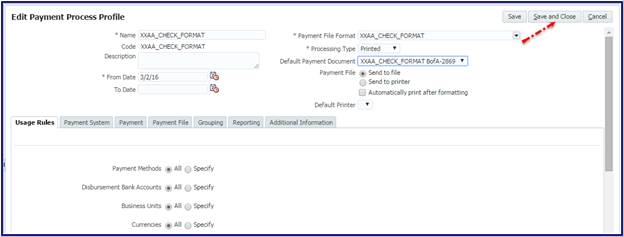
Step 4: Creating Payment Process Profile
Go to Navigator and click on Setup and Maintenance

Search with Manage Payment Process Profiles and click on Go To Task

Click on create  button

Enter the details and save
Name
Value
Name
XXAA_CHECK_FORMAT
Code
XXAA_CHECK_FORMAT
Payment File Format
XXAA_CHECK_FORMAT (Created in Step3)
Processing Type
Printed
Enable
Send to File

Note : Don’t select the payment document at this step
Note ID : Cannot Save New Payment Process Profile (Doc ID 1981556.1)

Click on Ok then select the Payment Document : XXAA_CHECK_FORMAT BofA-2869 and save

Step 5 : Creating PPR Template
Nav : Payables àPayments àTasks à Manage Payment Process Request Templates àActions àCreate

Enter the below values save it
Name
Value
Template Name
XXAA_CHECK_FORMAT
Payment Method
Check
Disbursement Bank Account
BofA-2869
Payment Document
XXAA_CHECK_FORMAT (Created in Step2)
Payment Process Profile
XXAA_CHECK_FORMAT (Created in Step4)
Payment Conversion Rate
Corporate
Review Proposed Payments
Enable
Create payment File Immediately
Enable


Step 6 : Void the Payments
Nav : Payables àPayments àTasks à Manage Payments

Search the payment and select any payment and void the payment

Click on Submit

Step 7 : Submitting PPR
Nav : Payables àPayments àTasks à Submit Payment Process Request
Enter the PPR name and select the PPR template created in Step 5 then it will populate the all default values and click on submit


Go to Manage Payment Process Request
Search with above created PPR and click on the Action button

Click on Resume Payment Process

If the payment struck with “Waiting For Payment File Processing” status then submit “Create Printed Payment Files”

Nav : Payables àPayments àTasks à Create Printed Payment Files
Enter the below details:
Name
Value
Disbursement Bank Account
BofA-2869
Currency
USD
Business Unit
US1 Business Unit
Payment Process Profile
XXAA_CHECK_FORMAT
Payment Process Request
PPR001
Payment Document
XXAA_CHECK_FORMAT
Print Now
No


Now Go to “Manage Payment Process Request” Search with above created PPR and click on the Action button

Click on Submit

Click on “Record the Print Status”


Go to Navigator and click on and click on Scheduled Processes

Refresh and click on output link:


If you are facing any issues while copying the Code/Script or any issues with Posts, Please send a mail to OracleApp88@Yahoo.com or message me at @apps88 or +91 905 957 4321 in telegram.
Best Blogger TipsGet Flower Effect